
Vision Board
Make your vision board on your iPhone or iPad
I’m Marina. I’ve been making vision boards since 2022 and started VISIYA for it, a vision board maker for iPhone and iPad: start from a template or a blank board, add pictures and words, and keep it where you’ll see it every day. One board is free.

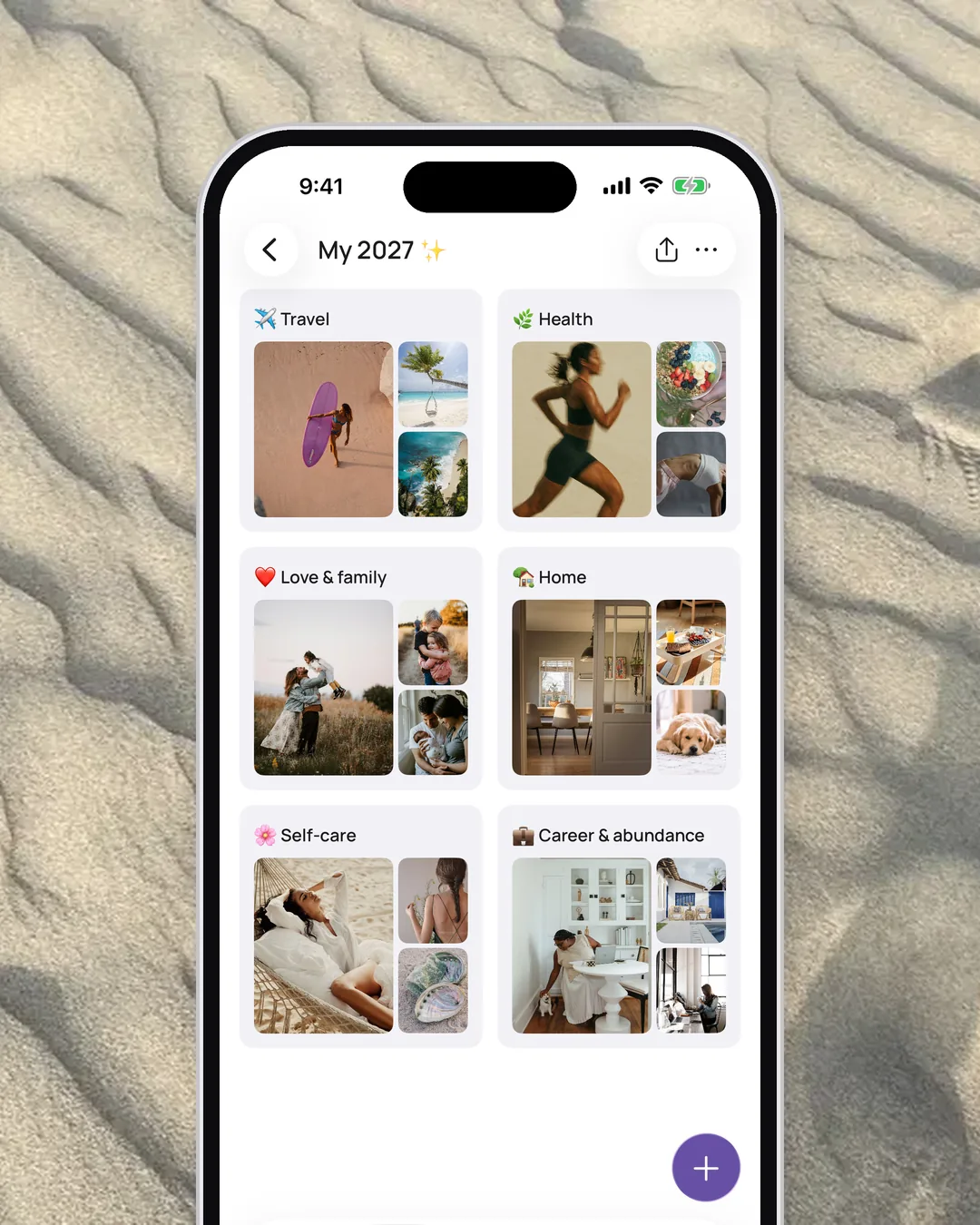
Your first board in 5 steps
- 01
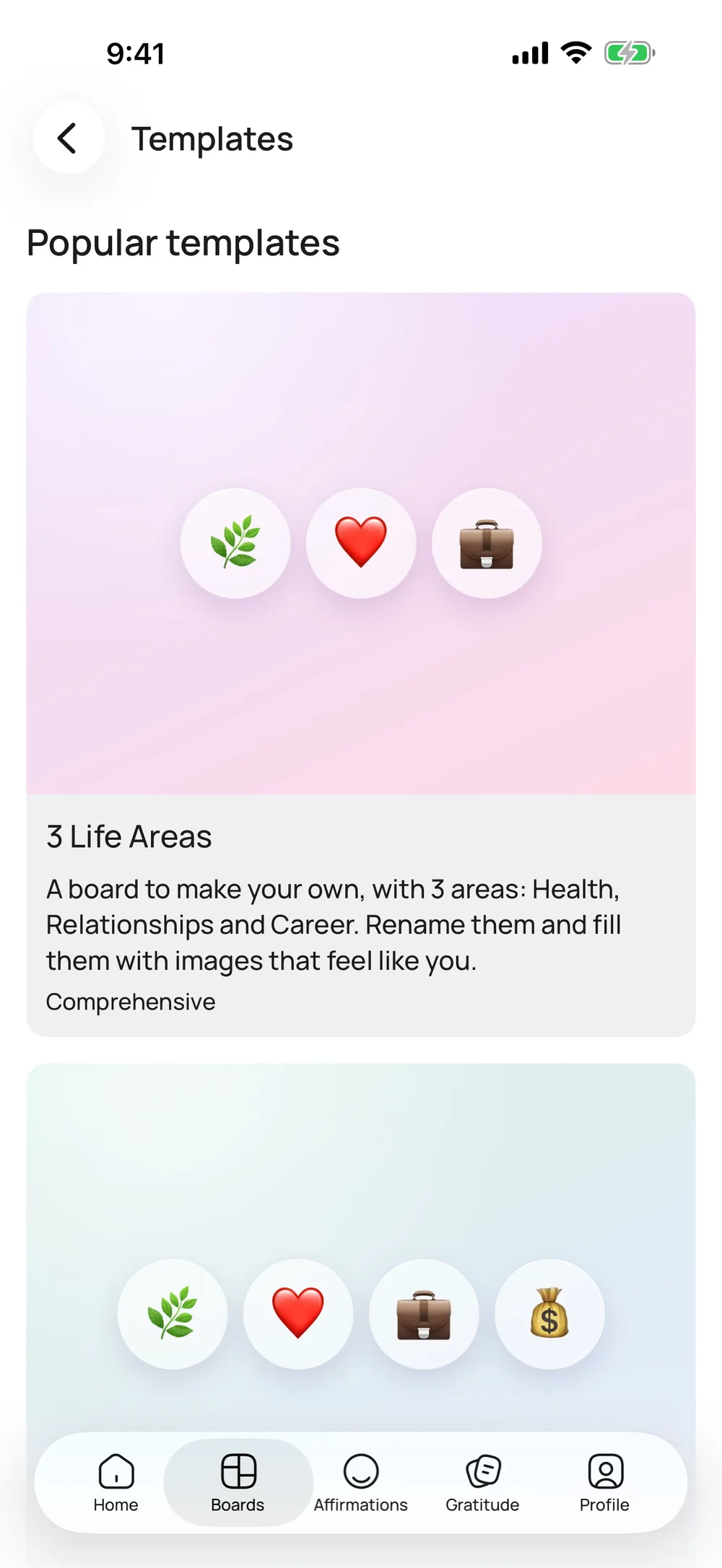
Pick a template or start blank
Open Templates and choose a board for couples, for moms, the wheel of life and more. Eight templates are free. Or start with a blank board and make it your own.
- 02
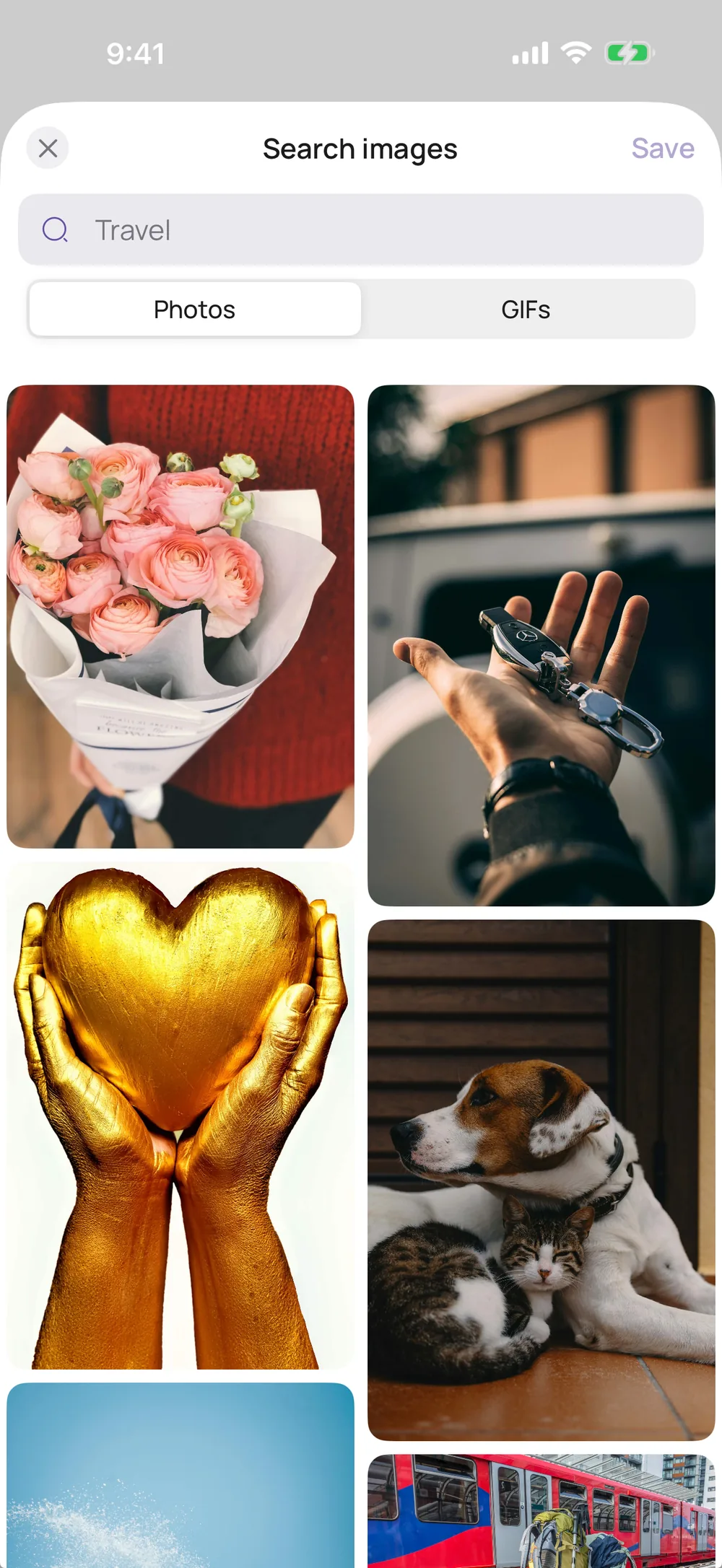
Add pictures
Tap + and Search images for Unsplash photos and GIPHY GIFs. Your own photos work too: pick them from your library or take a new one with the camera.
- 03
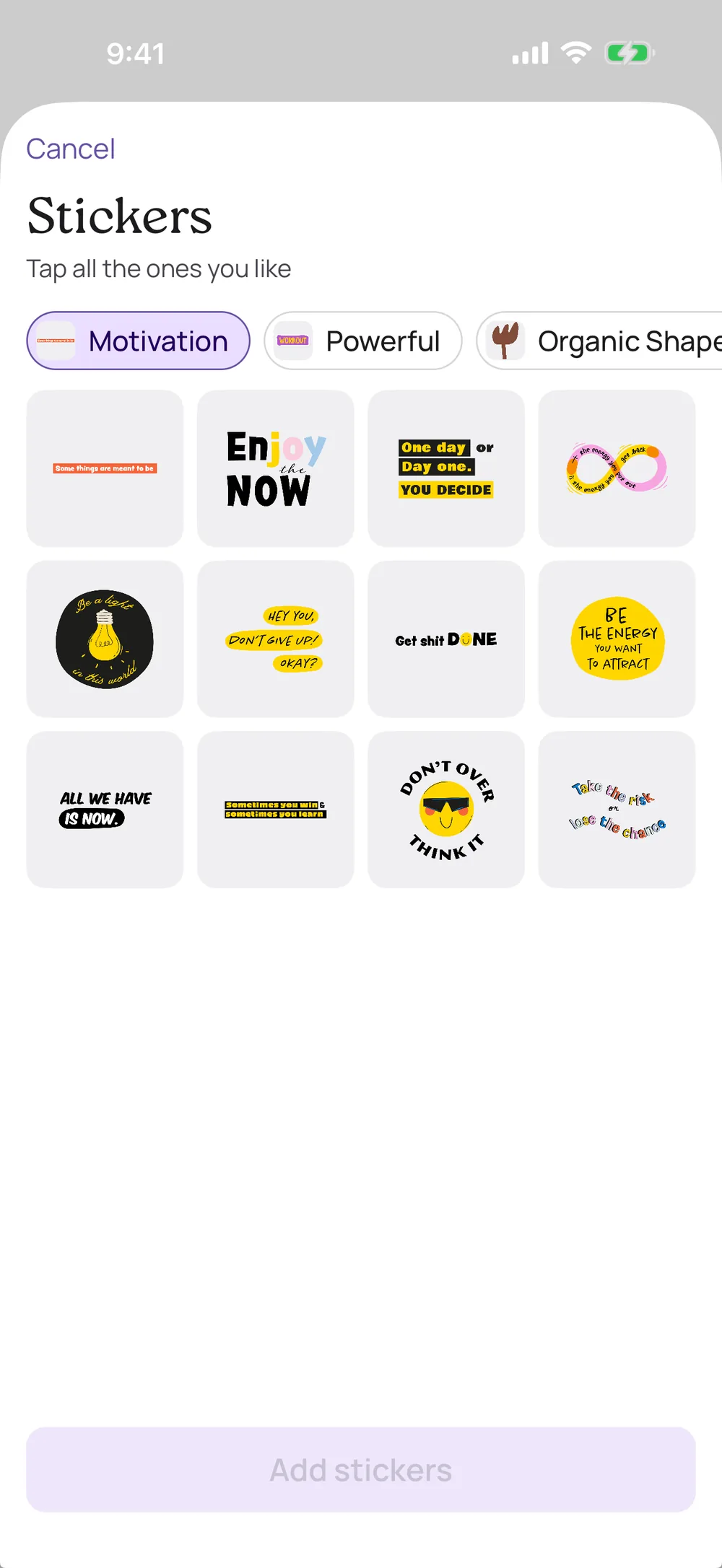
Add words, links and stickers
Write a note in your own words, save a link to the apartment listing or the yoga class, then finish with stickers and a color or two.
- 04
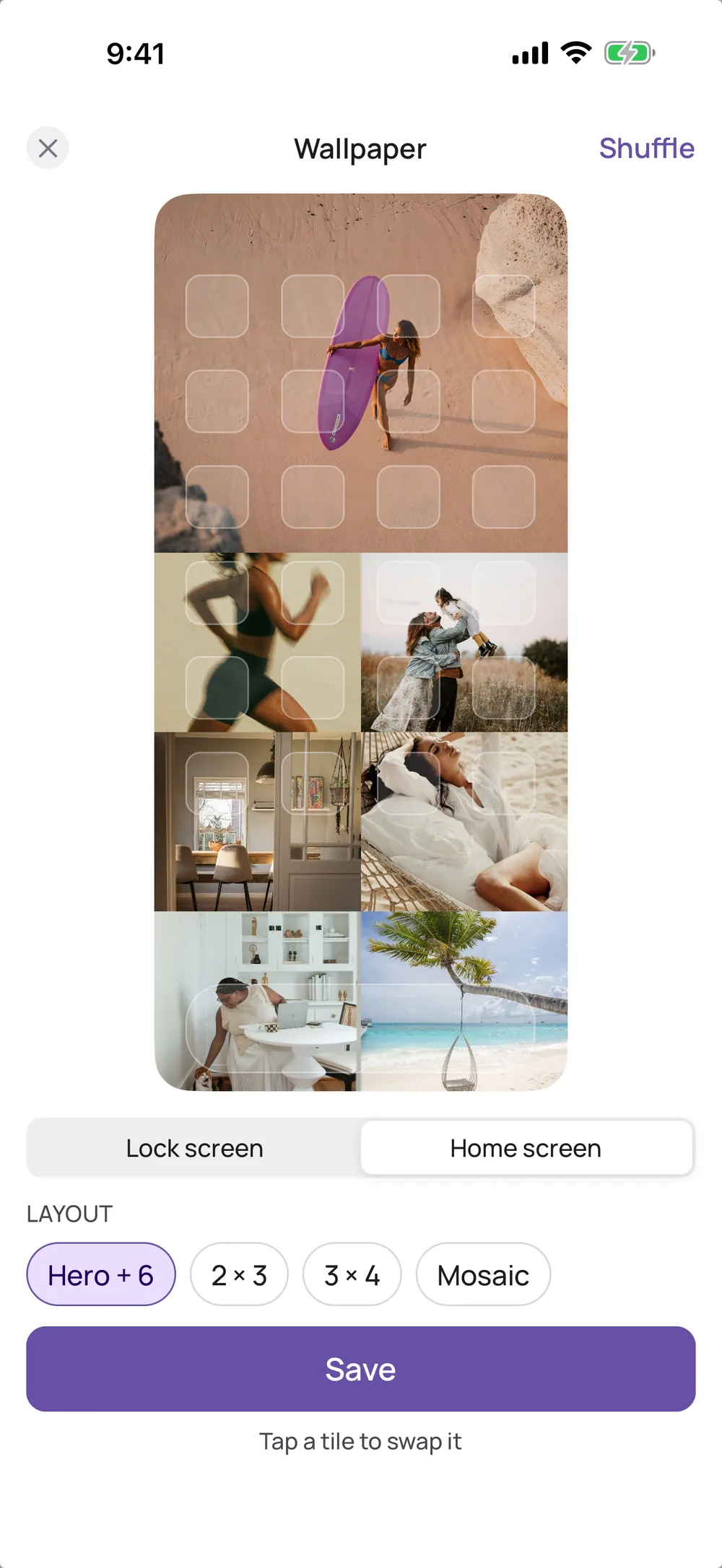
See it every day
Make the board your wallpaper or put it on your home screen as a widget. Both are part of VISIYA Plus. Previewing the wallpaper is free.
- 05
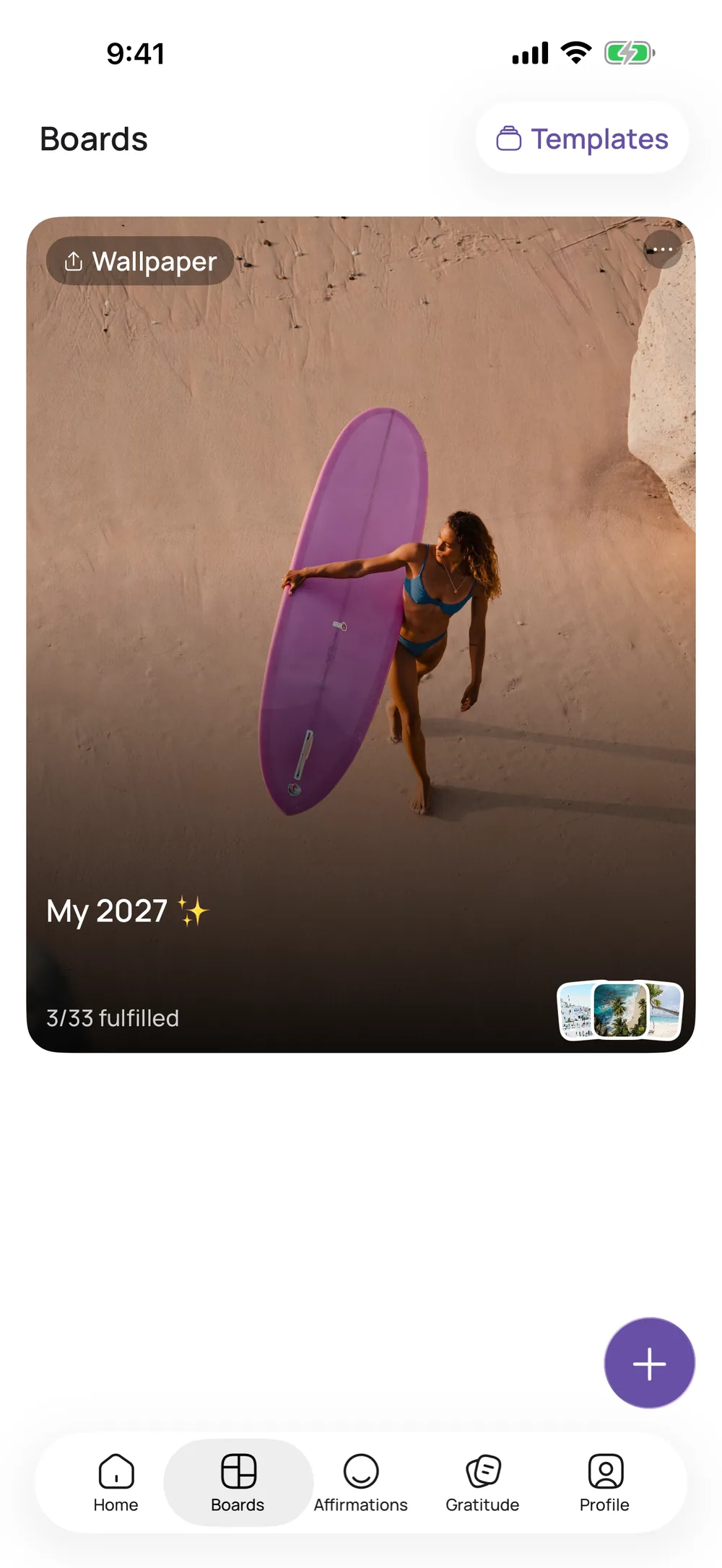
Mark what came true
When a wish comes true, choose Mark as fulfilled. The board card keeps count, like “3/12 fulfilled,” so you can see how far you’ve come.
What you can do with your board
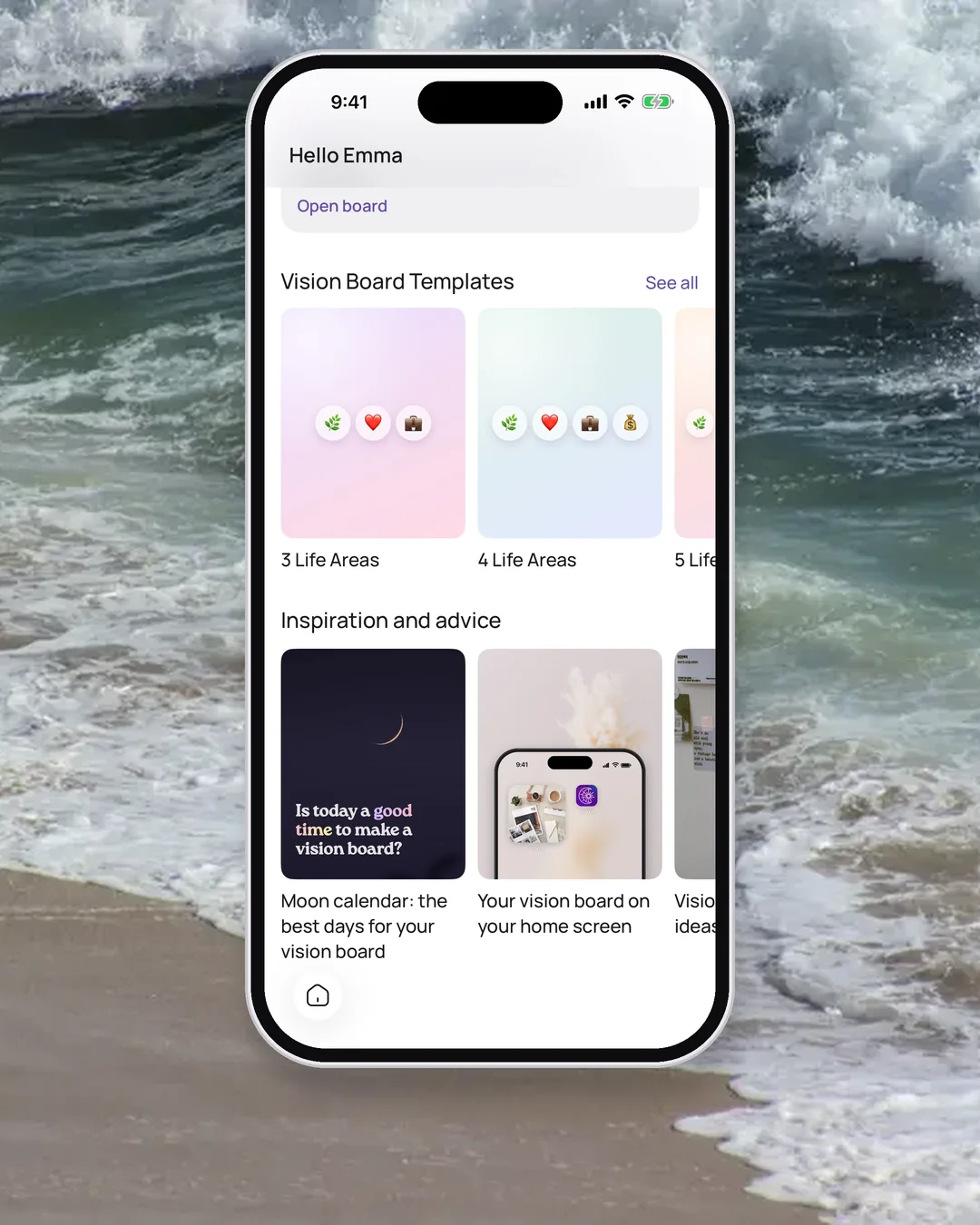
Moon phases
VISIYA shows the current moon phase, and one tap opens a page with every phase. Plenty of people write down their wishes at the new moon and check in at the full moon to see what has changed.
Templates, eight of them free
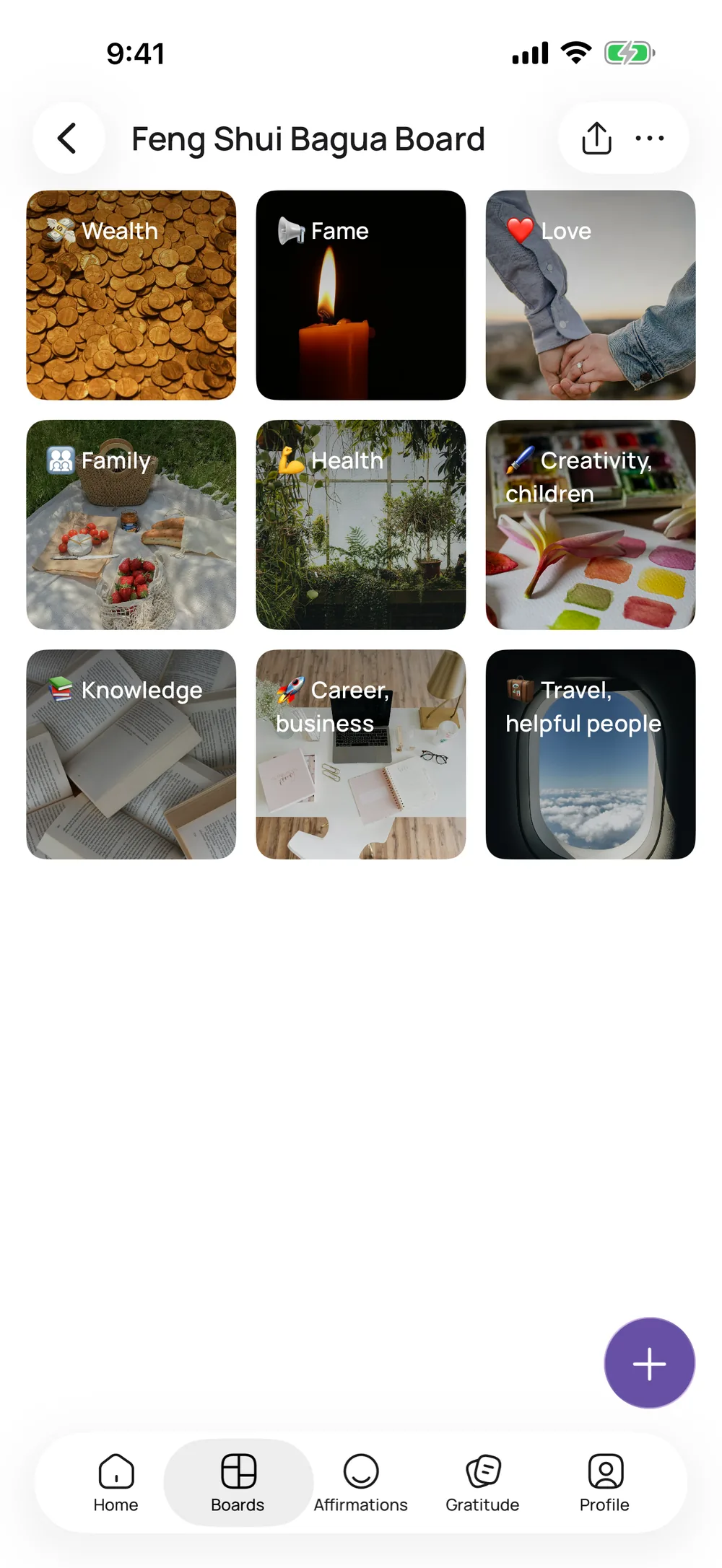
Each template comes with areas set up for you, like Health, Love or Career. Eight are free, among them Wheel of Balance Board, Feng Shui Bagua Board, Vision Board for Couples and This Year I Will. The rest are VISIYA Plus.
Pictures, GIFs, notes, links, stickers, colors
Unsplash photos, GIPHY GIFs or your own pictures, plus notes, links, stickers and colors. Some sticker packs are part of VISIYA Plus. A board you start yourself is one collage without areas; areas come with templates.
Your board as a wallpaper (Plus)
Open your board, tap ⋯ and Create wallpaper. Pick a layout, tap a tile to swap it, then Save and Save Image. In Photos, tap Share and Use as Wallpaper. The preview is free; saving takes VISIYA Plus.
The vision board widget (Plus)
Touch and hold an empty spot on your home screen, tap Edit, then Add Widget, search for VISIYA and pick Vision Board. The widget is part of VISIYA Plus and cycles through all your pictures. Without Plus, it shows just the first picture.
Dream together
Invite your partner, your sister or your best friend with a link or a code. Anyone who joins can add to the board, no Plus needed. To use a code, go to Profile → Join a board. Without Plus, a board you join is your one free board.
Mark as fulfilled
Mark any picture or note as fulfilled, and the board card counts it. A year from now, you can open your board and see in plain numbers how much of it already came true.
This season
For a fresh start

2027 Vision Board
What the year means, the best new moon dates and a free printable template.
Read the 2027 guide
13 Wishes Ritual
The German winter custom of 13 wishes and 12 nights, with dates and a free vision board.
See the ritual
Winter Arc
A gentle plan for the dark months: small habits, no pressure.
Start your winter arc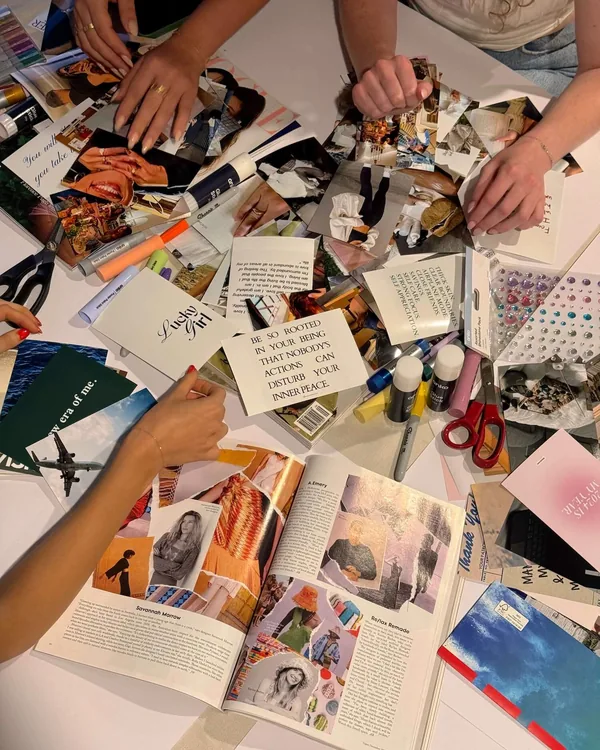
Vision Board Party
Snacks, a playlist, a supply list and what to wear for a night in with friends.
Plan your party
Vision board examples
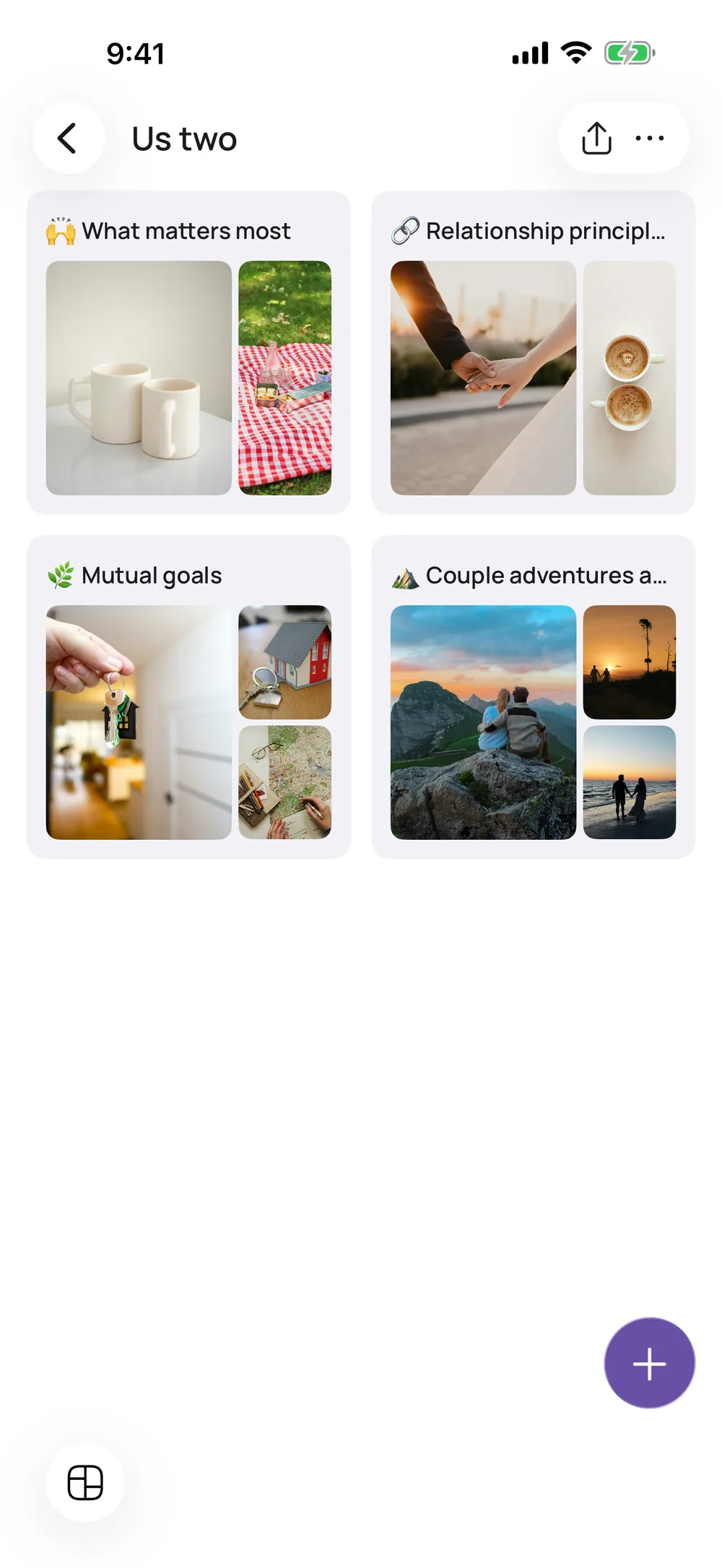
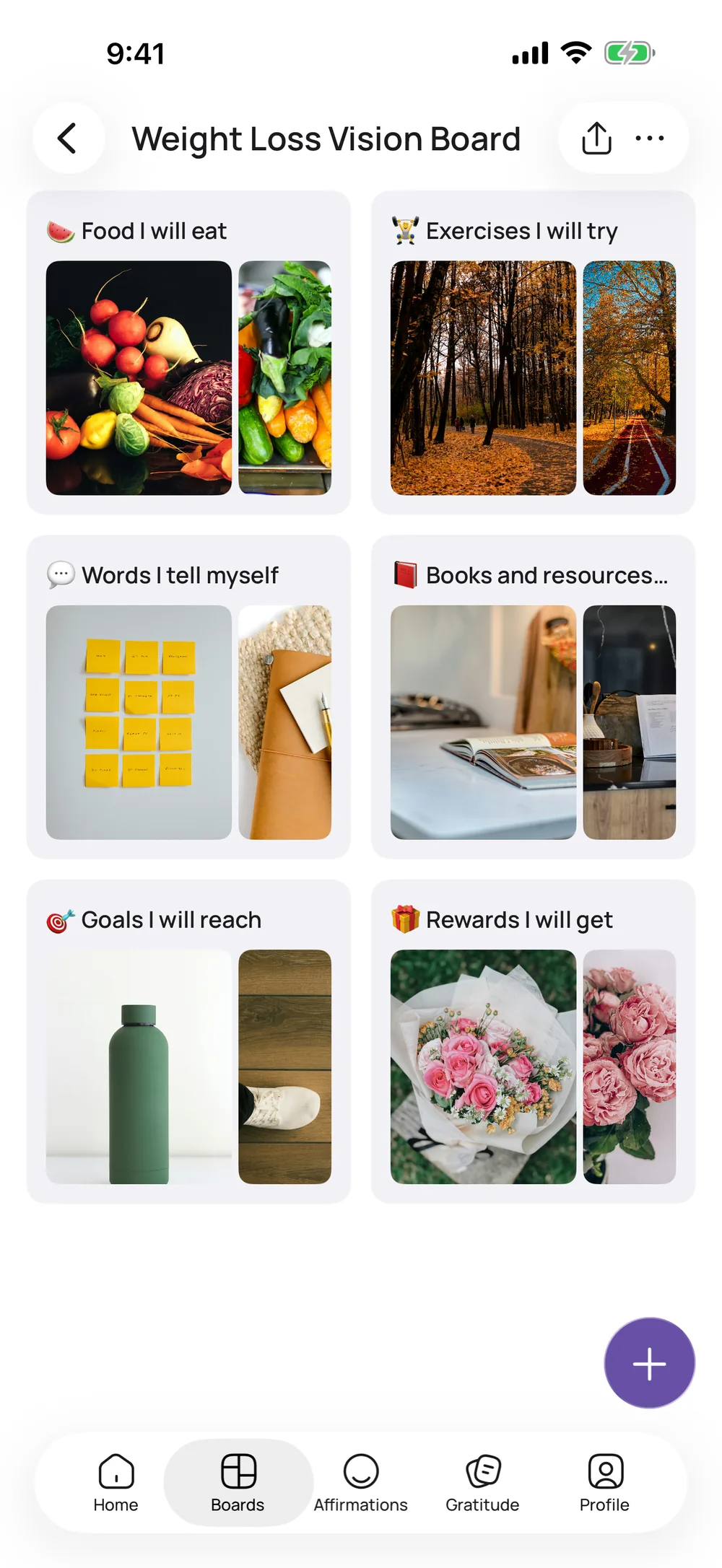
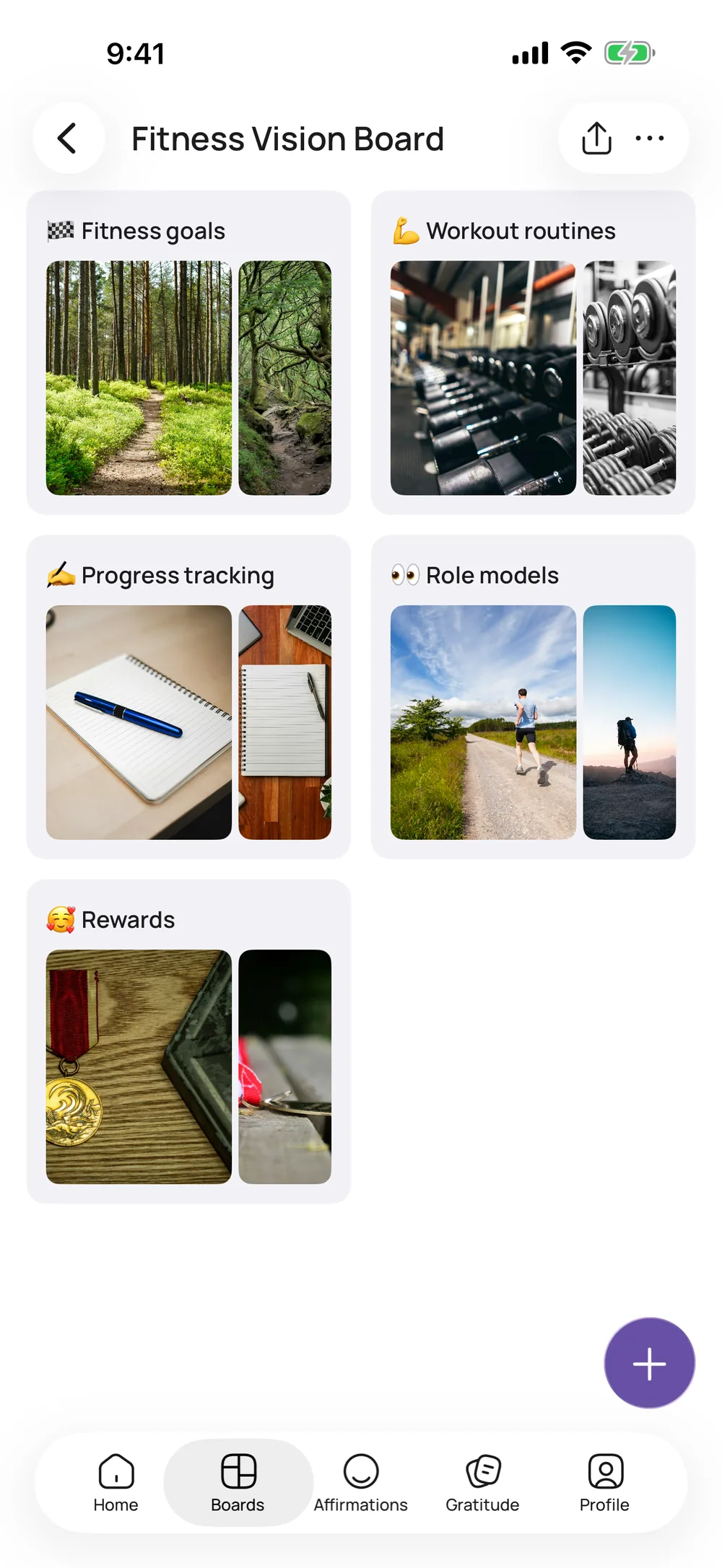
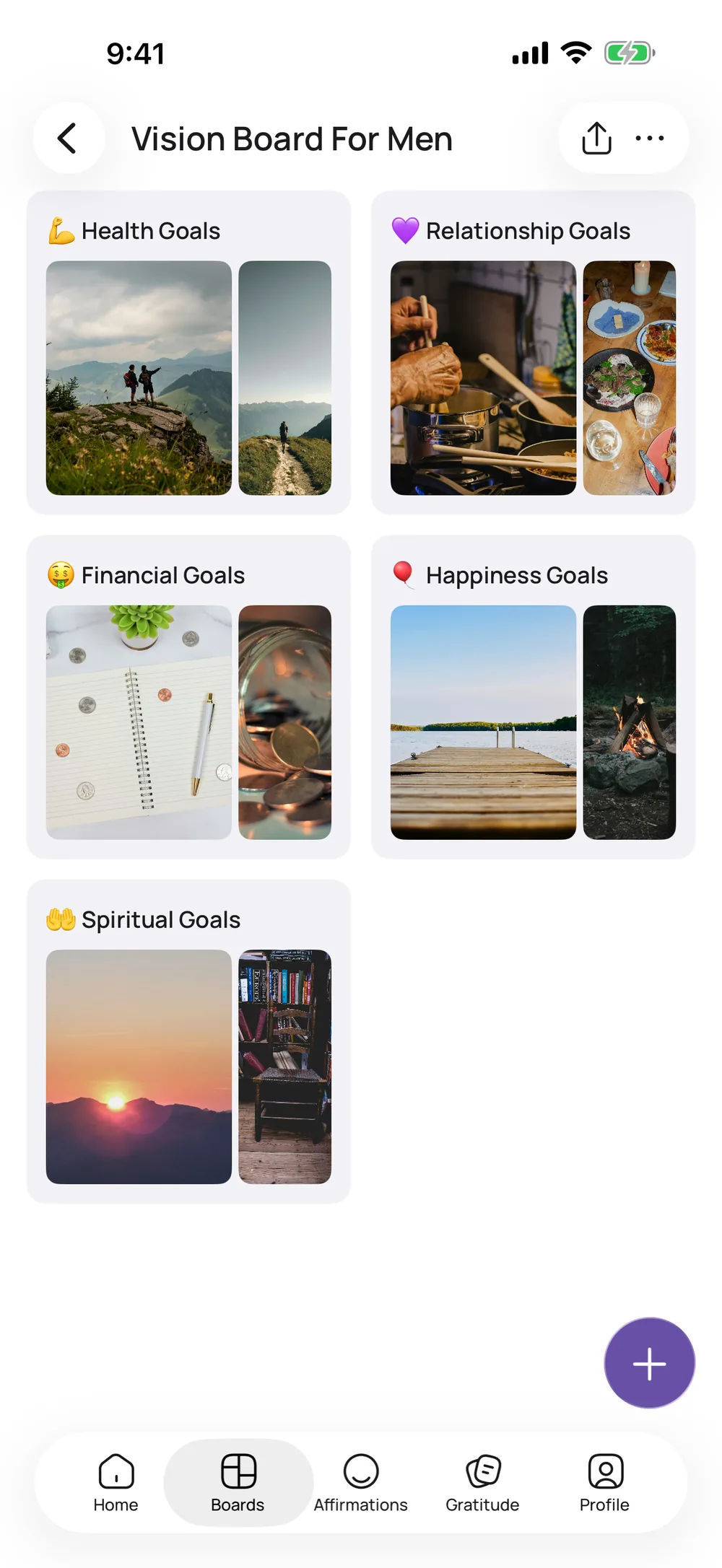
Five boards made from our templates. Couples and Feng Shui are free templates. Weight Loss, Fitness and the board for men are VISIYA Plus. All five are free printable PDFs, too.
Frequently asked questions
Is VISIYA free?
You can start for free with one board: your own or one of the eight free templates. VISIYA Plus adds more boards, every template, the wallpaper, the vision board widget and more. It’s a one-time purchase, with no subscription.
How do I put my vision board on my lock screen?
Open your board, tap ⋯ and Create wallpaper. Pick a layout and tap Save, then Save Image in the share sheet. In Photos, tap Share and Use as Wallpaper, and choose Lock Screen, Home Screen or both. Saving the wallpaper is part of VISIYA Plus.
Can I print my vision board?
Yes, for free. Tap ⋯ and Download to save your board as an image you can print or send. Every template is also a free printable PDF on our templates page.
Does VISIYA work on iPad?
Yes. VISIYA is made for iPhone and iPad. Sign in with the same account on both and your boards stay in sync, and the bigger screen gives you room to arrange them. There’s no Android version.
Your future is worth picturing
Start your vision board today — free on iPhone and iPad.
 Scan to download VISIYA on the App Store